Posts

CC and BCC on Support Tickets
Image
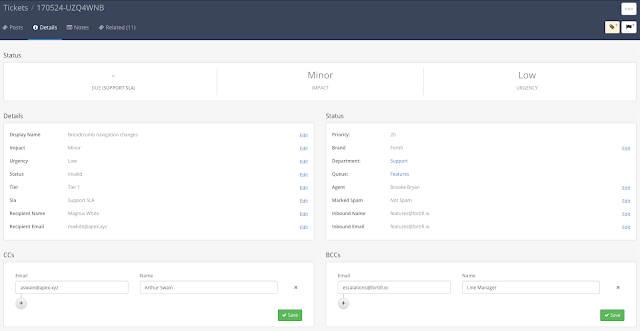
You can now add CC and BCC addresses into Support Tickets to increase the reach of your Support Tickets, bringing more people into the Support conversation. On the Support Ticket click on the Details tab and you can edit the CC and BCC fields to remove or add recipients. This allows you to reach multiple contacts for this customer at once, or BCC in your line manager etc: Also if a customer has various stakeholders invested in an issue they can add them as CC recipients to their support email and they will automatically be added as CC emails in the Support Ticket and will receive any replies for that Support Ticket automatically.

Online Ticket View

Image
An exciting new feature for Support Tickets is our Online Ticket View. Using this your customers can view the full history of a Support Ticket directly in a web page where the can also send replies without having to use their email client.  Customers can access the Online Ticket View by clicking a link which is now added by default to the bottom of all Support Ticket emails. To enable or disable sending the Online Ticket View links in emails page go to the Brand Settings page and click on Ticket Options under Support:  Ensure this is enabled and then send out Support Tickets. In the footer of the Support Ticket email will be a link to view the ticket online. Clicking this the Customers will get access to the Online Ticket View, which displays the Brand Name, Logo and is coloured using the Brand colours, ensuring this feels like an extension of your Support features for your customers: